QScope

Facility monitor

Value in place, for the party releasing funds

A monitoring mode for the person who recommends the drawdown: the facility terms, the tranche schedule, the site visits and the photographs, held together so the figure the lender releases against is traceable to evidence.

  • Facility ceiling entered as the net drawable sum
  • Lender profit accrued per month, simple, at the rate the agreement states
  • Retention held as a percentage of each tranche’s actual cost, released at practical completion

30 days free, no card.

Facility monitor
Facility terms
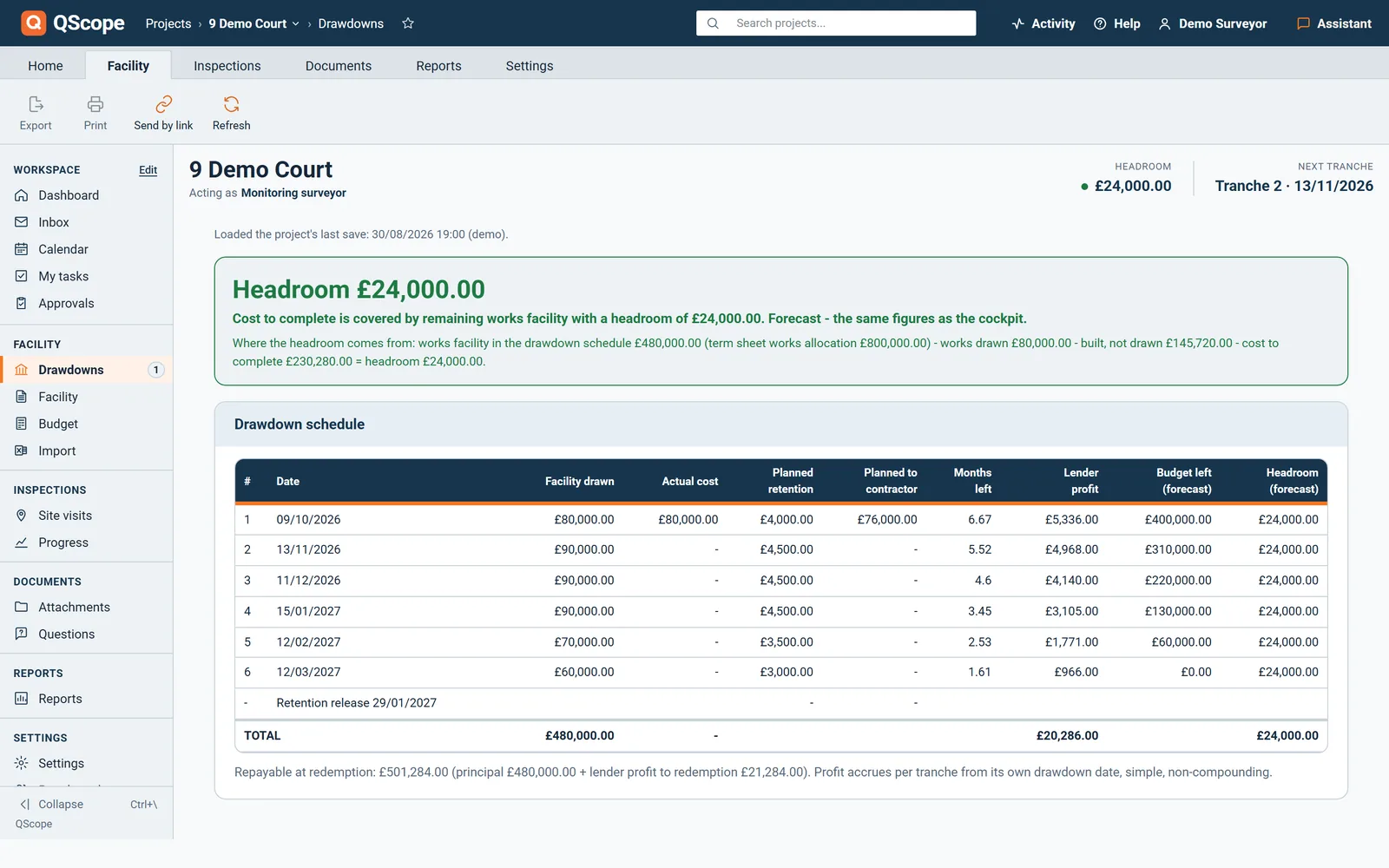
Facility ceiling, net drawable£1,450,000
Purchase drawn from facility£620,000
Lender profit, % per month0.85%
Retention, % of tranche cost5%
Headroom today£318,400

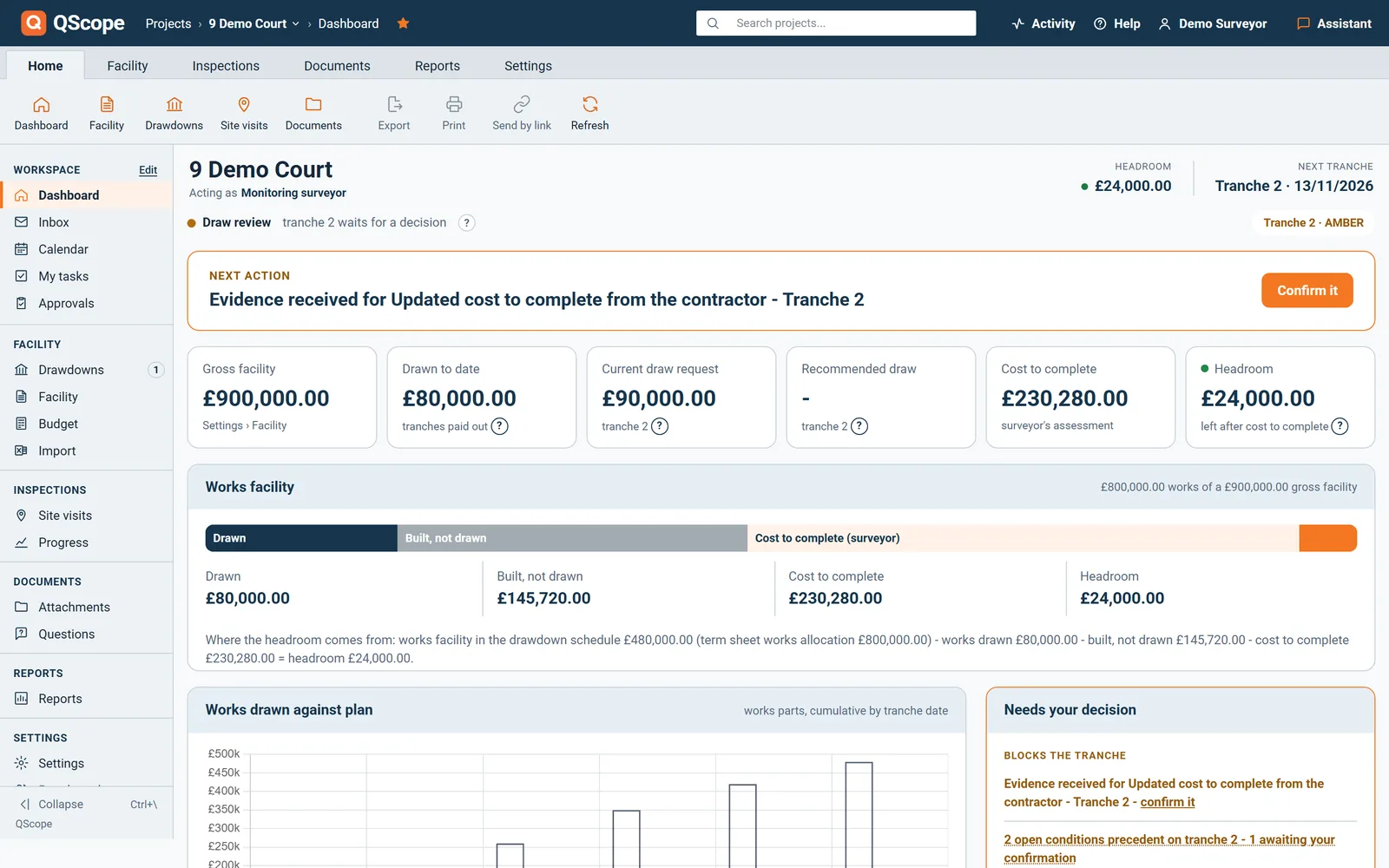
The amber light below the schedule is the headroom check: when the remaining cost to complete presses against what is left to draw, the screen says so before the money does.

The evidence

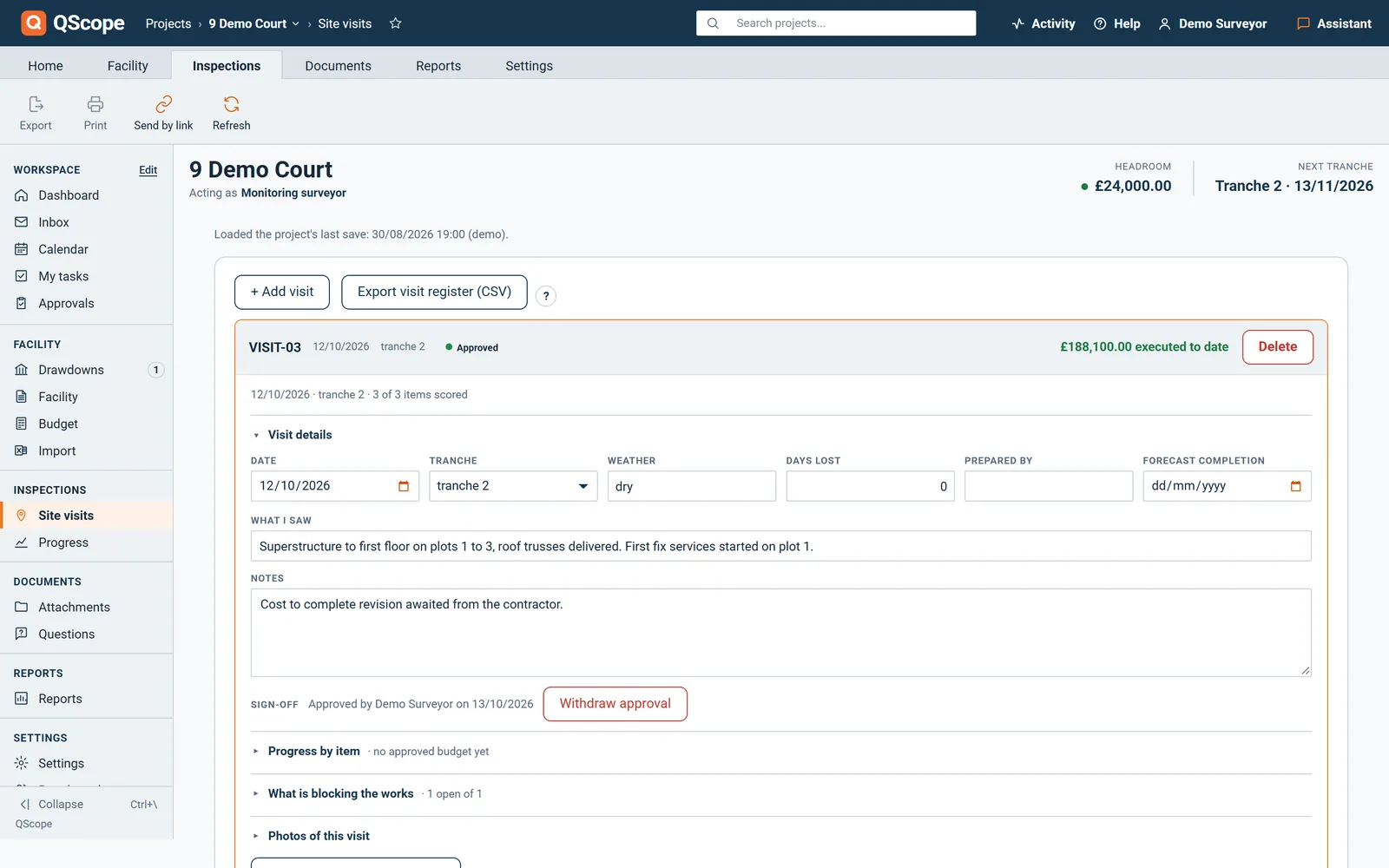
A site visit is evidence, or it is a trip

Each visit is recorded against the tranche it supports, and the photographs are filed to that tranche rather than to a folder nobody reopens.

  • Site visits logged with date and findings, per tranche
  • Photographs assigned to the tranche they evidence
  • Documents saved with the record the lender will ask for
Facility monitor
Site visits
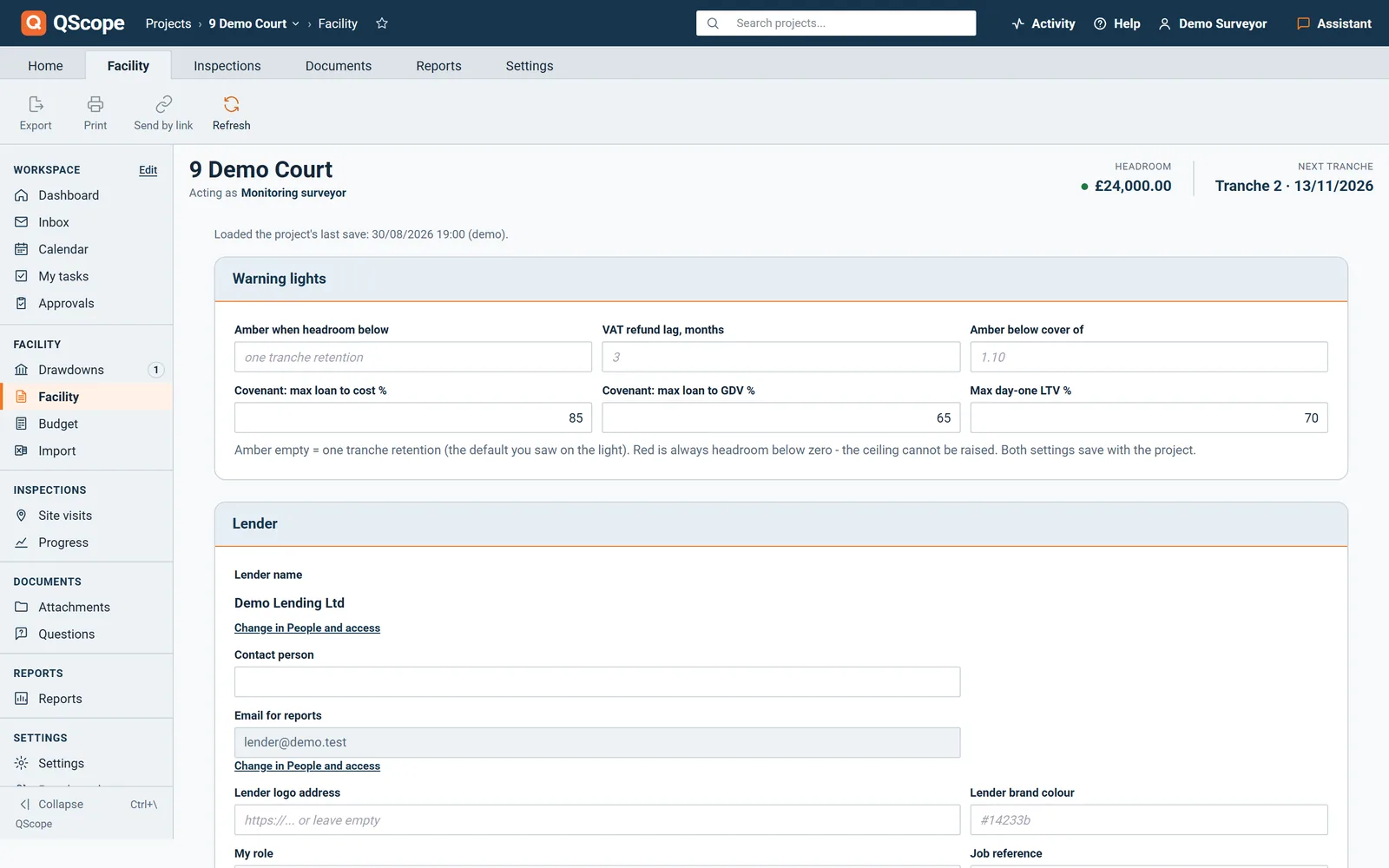
Visit 4 · 22 Aug 2026tranche 3
Photographs filed12
Documents saved6
Visits on the record4

The drawdown recommendation prints the photographs assigned to ITS tranche - the reader was never on site, so the evidence travels with the figure.

The recommendation

The drawdown recommendation prints from the record

The document the lender acts on is assembled from the tranche schedule, the visit record and the budget the lender approved.

  • Tranche drawdown recommendation printed per tranche, with its own photographs
  • Costs outside the facility kept separately, so the drawable sum stays clean
  • The lender's retention to date has its own tile, with the release date
Facility monitor
Tranche 3 drawdown recommendation
Lender-approved budget£1,450,000
Drawn to date£884,000
This tranche£186,000
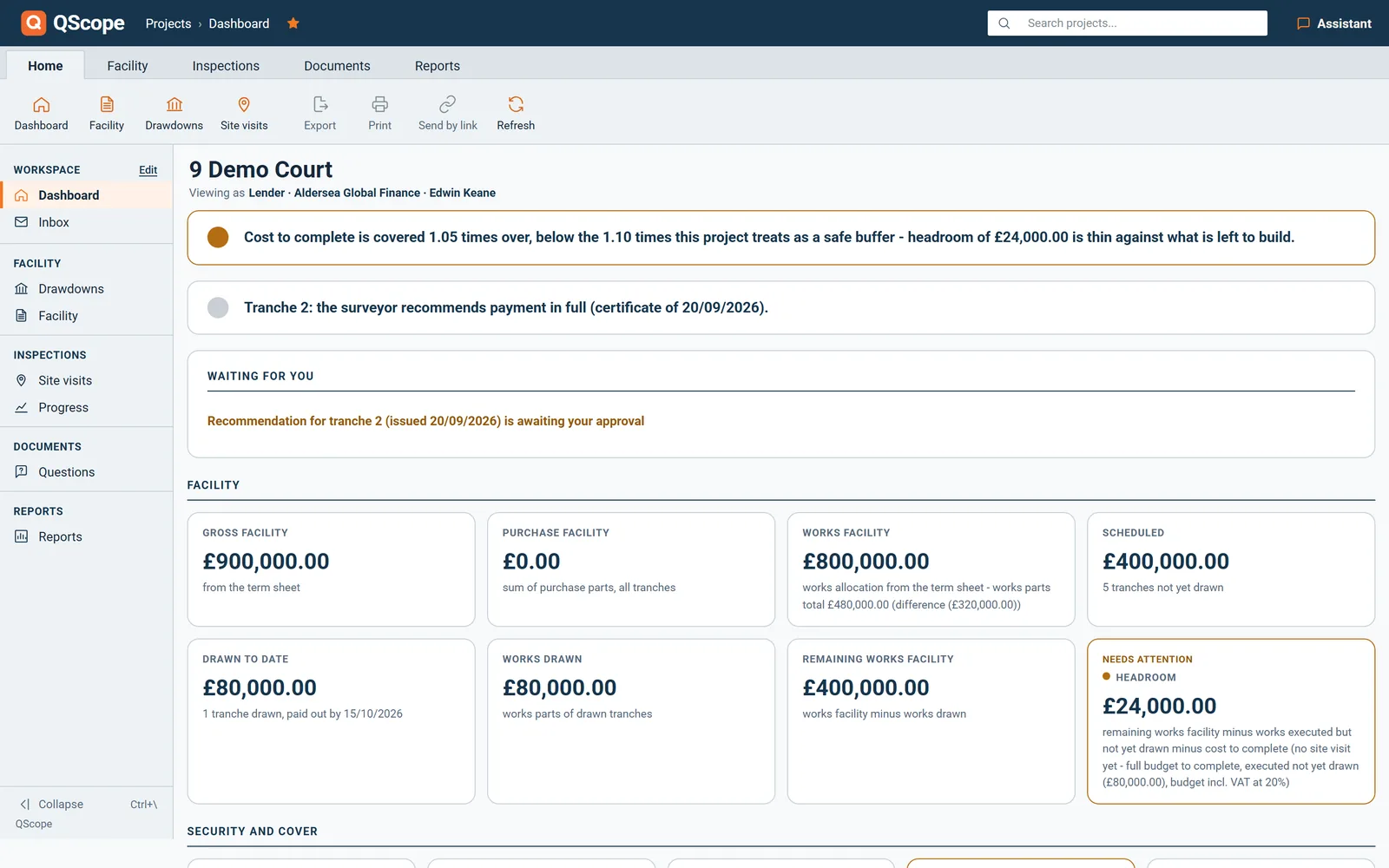
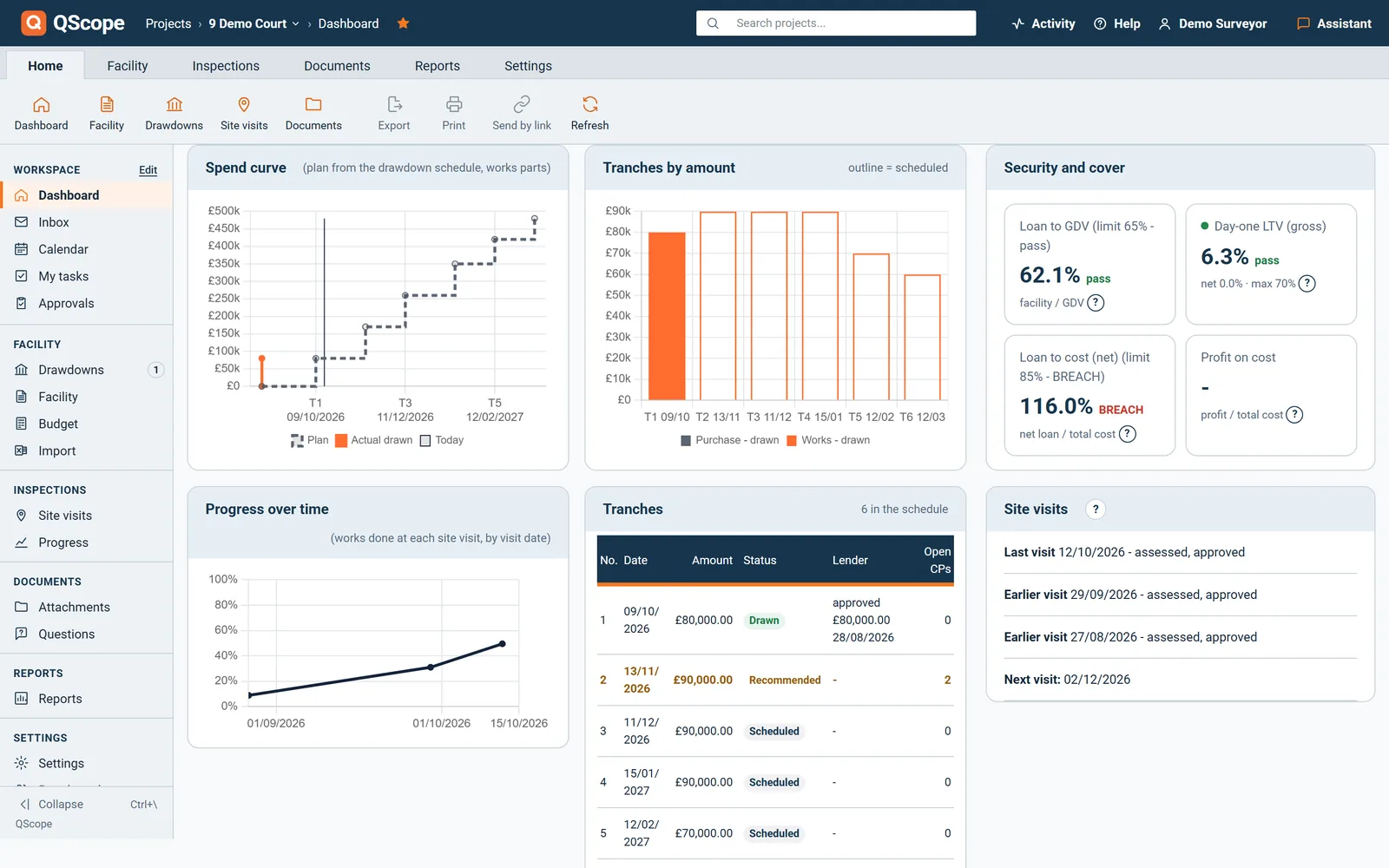
Retention held on tranche(£9,300)
Recommended for release£176,700

Every figure on the recommendation traces to a line in the record: the schedule, a visit, a photograph, a document. That is what standing behind the figure means.

The lender's answer

The lender approves or queries the tranche online

The lender answers the recommendation on its own screen: approve the tranche, or query it.

  • The lender enters the amount it approves and its name, with a reason if it is less than recommended
  • Once approved the lender cannot change it, and the surveyor can
  • Each tranche moves through requested, assessed, approved and paid
Facility monitor
Tranche 3 · lender
Recommended for release£176,700
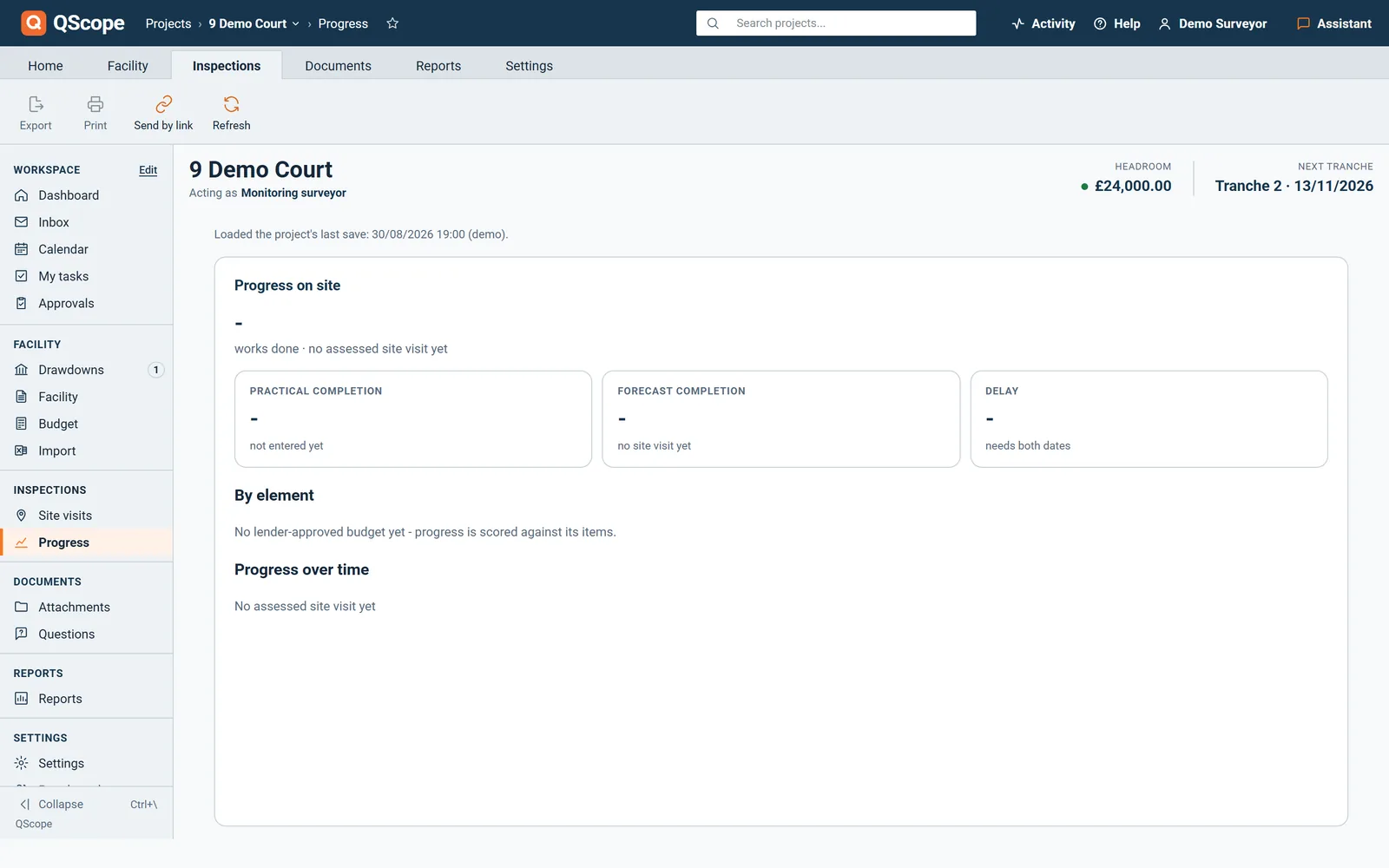
Amount you approve£176,700
Approved bythe lender, by name
Tranche statusApproved

Seven reports print from the record: initial appraisal, tranche drawdown recommendation, pre-drawdown report, cost to complete, progress report, early warning and final report.

The borrower's side

The borrower sends the evidence the conditions ask for

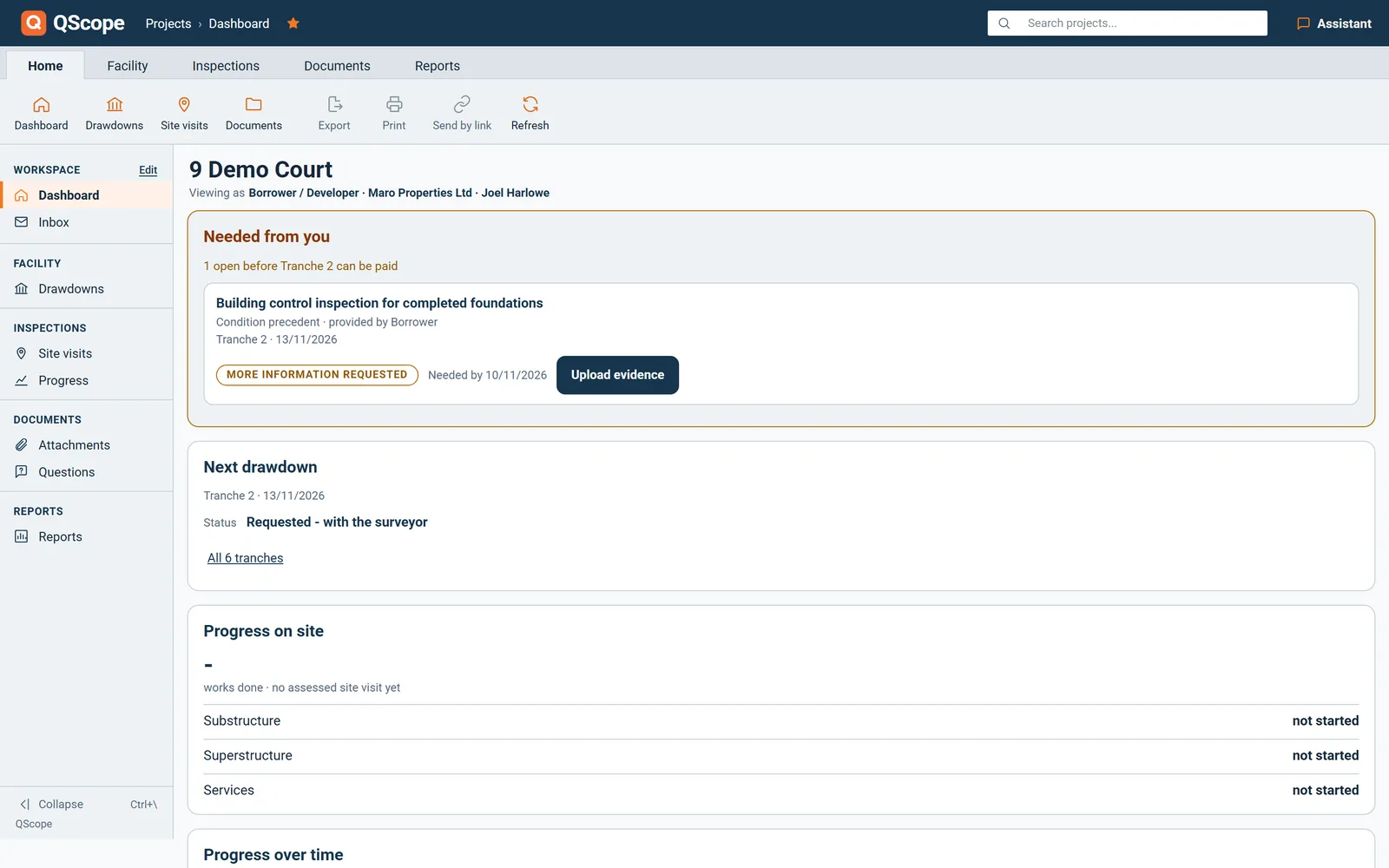
Conditions precedent sit against each tranche, and the borrower sees what is needed from them on their own view.

  • The borrower uploads evidence against a condition and answers questions from the monitoring surveyor
  • You accept and close the condition, or ask for more
  • Every condition shows where it stands: open, evidence sent, or more information requested
Facility monitor
Tranche 3 · conditions precedent
ConditionStatus
Building control sign-offevidence sent
Updated cost to completeopen
Insurance certificatemore information requested
Conditions closed4 of 7

Facility terms can be read from the term sheet or facility letter as a PDF: QScope proposes the figures and nothing is written until you tick them and apply.

Facility monitor

What needs your decision today

Needs your decision lists what blocks the next tranche and what is still missing, each with a link to the screen that fixes it.

  • Evidence waiting for confirmation and open conditions on the next tranche come first.
  • A recommendation that is missing, unsent or based on old figures is named with its tranche.
  • An overdue site visit, a missing GDV or an unmarked budget shows under To complete.
Facility monitor
What needs your decision today
In the program
Needs your decisioncalculated
Blocks the tranchecalculated
To completecalculated

On screen: “Needs your decision”, “Blocks the tranche”, “To complete”.

Facility monitor

Security and cover, worked out for you

Security and cover shows loan to GDV, day one LTV, loan to cost, cost to complete cover and profit on cost, with each covenant breach marked.

  • Loan to GDV and day one LTV come from the valuer figures you enter.
  • Cost to complete cover compares what is left to draw with what is left to build.
  • Covenant limits from the term sheet mark the tile when a ratio crosses them.
Facility monitor
Security and cover, worked out for you
In the program
Security and covercalculated
Loan to GDVcalculated
Day-one LTVcalculated
Loan to cost (net)calculated
Cost to complete covercalculated

On screen: “Security and cover”, “Loan to GDV”, “Day-one LTV”, “Loan to cost (net)”.

Facility monitor

Every amount on the tranche, in its own field

Each tranche holds every amount behind its certificate, from the sum requested to the over-certification deducted.

  • Requested, assessed, recommended and approved amounts each keep their own date.
  • Fees, materials on site and off site and over-certification are entered separately.
  • Why less than requested goes on the certificate in your words.
Facility monitor
Every amount on the tranche, in its own field
In the program
Amounts and decisionsfield
Requested by borrowerfield
Requested onfield
Assessed by the surveyorfield
Actual works costfield

On screen: “Amounts and decisions”, “Requested by borrower”, “Requested on”, “Assessed by the surveyor”.

Facility monitor

Progress scored item by item

At each visit you score every item of the approved budget as a percentage done, and QScope works out the movement since the last visit.

  • The items come from the lender-approved budget and cannot be edited on the visit.
  • Start from last visit's % carries the previous scores so you change only what moved.
  • The value done is worked out from the budget, never typed in.
Facility monitor
Progress scored item by item
In the program
Progress by itemfield
Start from last visit's %field

On screen: “Progress by item”, “Start from last visit's %”.

Facility monitor

Send each report to the right party

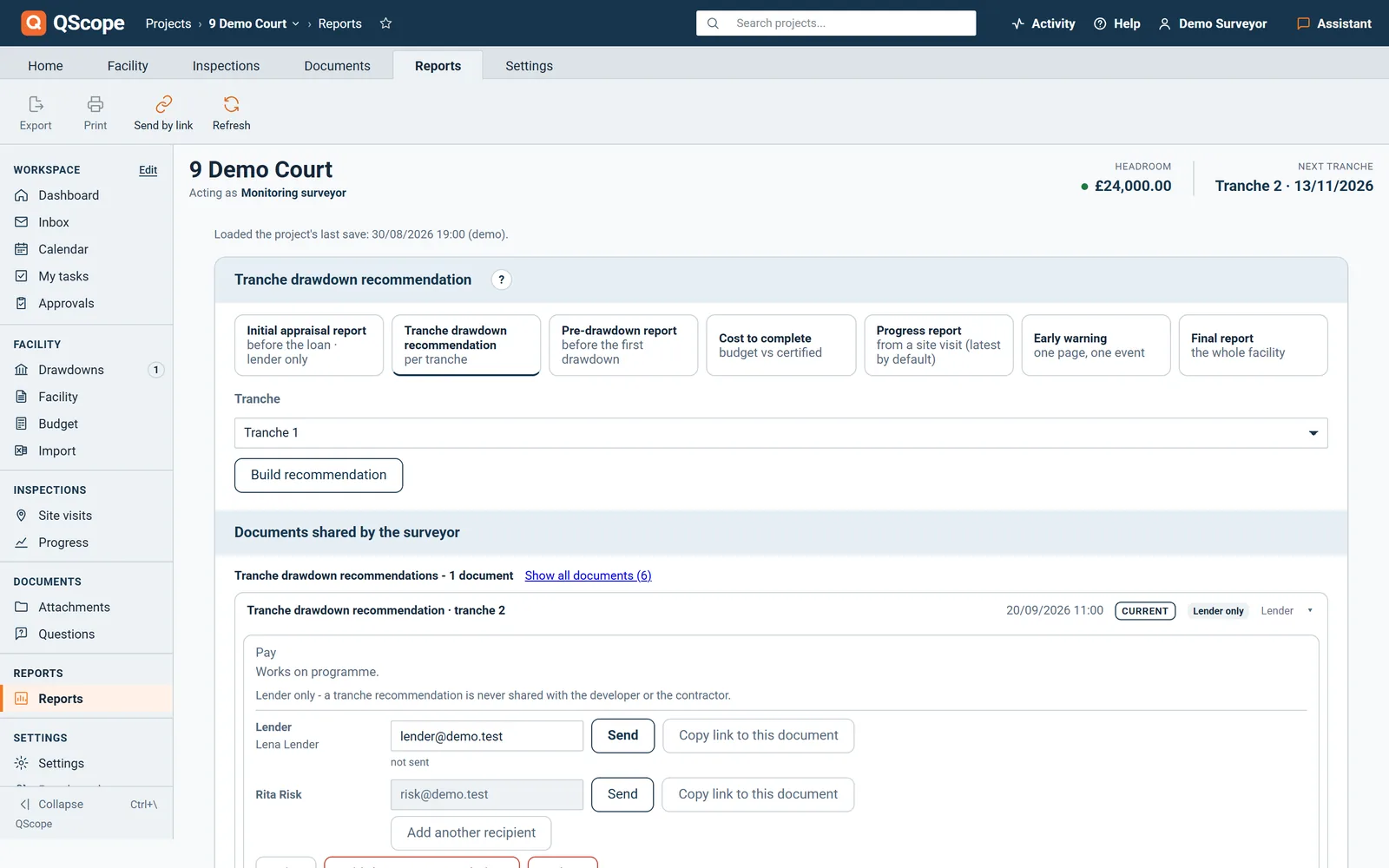
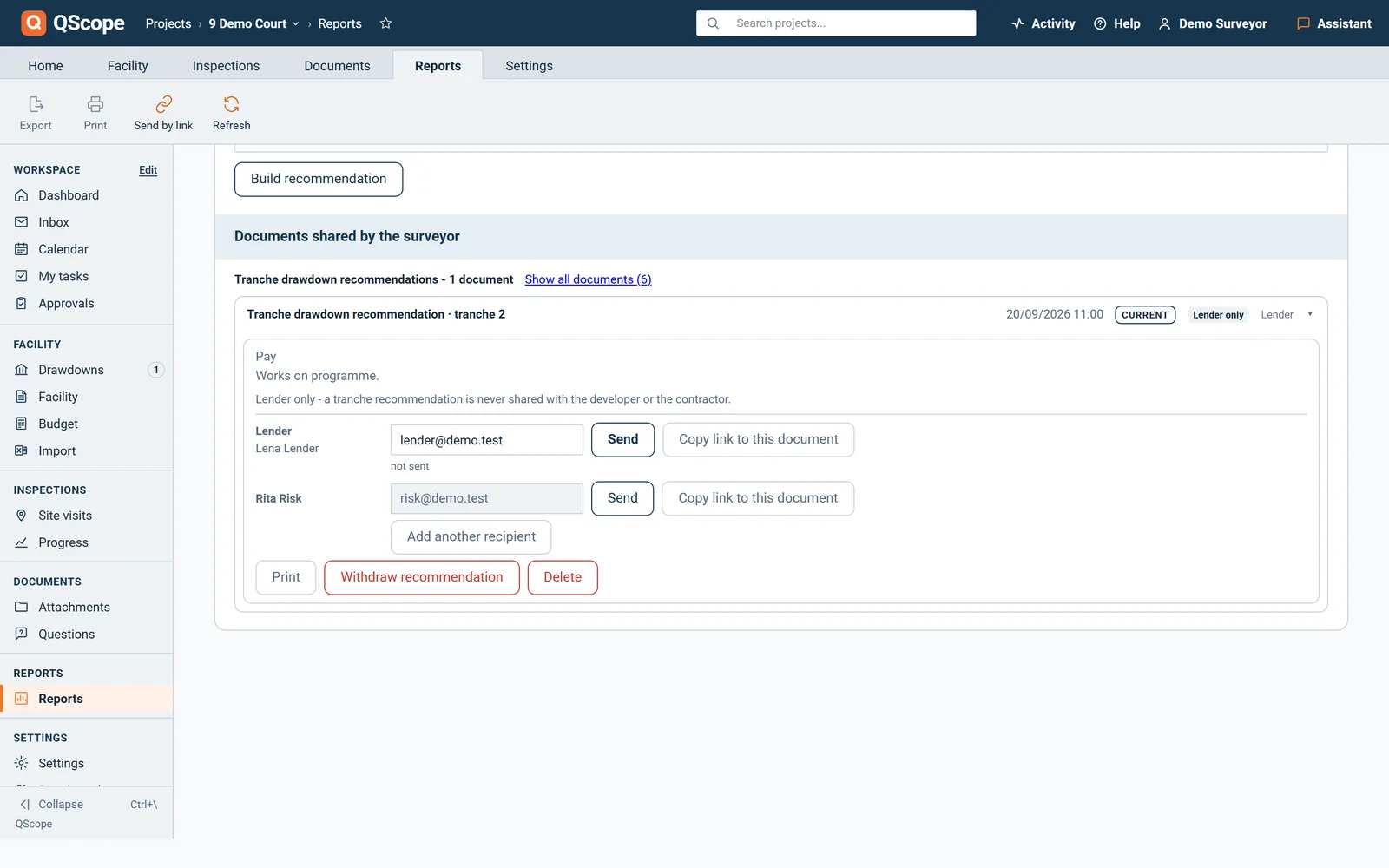
Each saved document is sent from its own card to the lender, the developer or the contractor, each with a separate link you can withdraw.

  • Send asks for confirmation and emails a live link to the frozen document.
  • Copy link to this document gives the same link to paste yourself.
  • Withdraw stops one recipient's link and the others keep working.
Facility monitor
Send each report to the right party
In the program
Saved documentsbutton
Sendbutton
Copy link to this documentbutton
Withdrawbutton
Add another recipientbutton

On screen: “Saved documents”, “Send”, “Copy link to this document”, “Withdraw”.

See it running before you sign up

Every other function on the facility monitor screens

63 functions the sections above do not cover, each as it works in the program.

Functions 1 to 32

01The monitor has nine screens: Dashboard, Facility monitor, Facility terms, Drawdown schedule, Works, Progress, Site visits, Documents and Settings.
02If someone else saved the facility after you opened it, QScope refuses your save and lists each field that differs, yours against theirs.
03A guest reading the facility is told when the file has been updated and can refresh with one click.
04The valuer's current market value and value on completion are recorded with their date and the valuer's name.
05The lender sees the facility terms as you recorded them, read only.
06Each tranche is made of parts, purchase including SDLT, works, finance or other, and the total adds itself up.
07Add tranche puts a new scheduled tranche at the end of the schedule.
08Deleting a tranche asks first, says what goes with it, and can be undone for a few seconds.
09When tranche dates fall out of order, QScope offers to renumber them and you can keep the numbers.
10The schedule table shows planned retention, the amount to the contractor, months left, lender profit, budget left and headroom for each tranche.
11Works holds the contractor from the project team, the contract form, start on site, practical completion, contingency and the forecast final cost.
12The lender-approved budget can be unmarked, and the reason you give is kept.
13A visit is signed off with Approve this visit, and a report is built only from an approved visit.
14Each visit lists what is blocking the works, with a date and an open or closed status.
15Build the report from this visit opens the progress report for that visit.
16Export visit register (CSV) gives every visit with its tranche, findings, blockers, approval and the document it was issued in.
17Photos open full size and you move between them with the arrow keys.
18A condition from the initial appraisal report can be added to a tranche with one button.
19Saving a document freezes it as it stands, numbers it, and marks earlier versions as superseded.
20The lender's link shows the whole document, the developer's has no facility figures, and the contractor's shows progress only.
21Share with developer and Share with contractor put a document in their Documents list.
22Withdraw recommendation needs a reason, kills its links and stops the lender approving that tranche on it.
23Deleting a document needs a reason, which is recorded in the audit trail with your name.
24You set the headroom amount that turns the light amber, the minimum cover and the loan to cost and loan to GDV covenants.
25The lender's contact, report email, logo and brand colour, your role and the job reference print on the documents.
26The appraisal, recommendation and visit reports can each use a client template from your account.
27Set how often you visit and the next visit date, and the dashboard reminds you.
28You can require a photo for progress scores, and an item scored without one shows red on the recommendation.
29You can show the developer an offer of their own QScope project, which you never see.
30The developer requests a tranche on their own screen, with the amount filled in from the schedule and the date they need it.
31Guests see what they have sent you and what you have shared with them, each with its status.
32The contractor's link shows progress on site with no tranches and no money.

Functions 33 to 63

33Every figure saves to the project as you type, and the screen says Not saved when a save fails.
34A save that would empty figures already held for the facility stops and asks you first.
35Once figures change after a recommendation went out, the dashboard marks that recommendation out of date and names what changed.
36When the developer sends evidence for a condition, it appears on the dashboard with a link to confirm it.
37Open conditions precedent on the next tranche are counted on the dashboard and listed when you expand them.
38The dashboard tells you when the next recommendation is not built, is saved but not sent, or needs rebuilding.
39The next site visit date shows on the dashboard and turns to OVERDUE the day after it passes.
40The dashboard shows gross facility, purchase and works facility, scheduled, drawn to date and remaining works facility.
41Three charts show the spend curve, each tranche split into purchase and works, and works done over time.
42Practical completion, forecast completion with weeks of slip, the redemption date and the buffer to it sit on one row.
43Further tiles show repayable at redemption, cost of finance, works done, funds spent, contingency left, open blockers and open conditions.
44A scanned PDF with no text is named as a scan, and you type the figures in yourself.
45Retained profit is worked out from the drawdown schedule at the monthly rate once every tranche has an amount and a date.
46Available for the refurb is worked out as the ceiling minus the purchase minus SDLT.
47A reason the lender gives for approving less, and any query it sends, appear on the tranche card.
48A condition that repeats one already on the tranche is flagged, and you add it anyway or remove it.
49A tranche without a date or an amount is named and left out of headroom and cover until it has both.
50QScope compares the works parts of all tranches with the works allocation in the term sheet and shows any difference.
51Where you change a tranche amount, the schedule shows the suggested figure beside yours.
52Progress shows practical completion, forecast completion, the delay in weeks and a chart of works done over time.
53Deleting a visit tells you which scores, photos and documents it affects, and a visit behind an issued document cannot be deleted.
54QScope will not save a Pay recommendation while a condition precedent on that tranche is still open.
55Print waits until every photo has loaded and tells you which ones are missing before it prints.
56Before you issue, QScope warns if no lender is appointed in the project team.
57If your company logo cannot be used, the document screen says so before you print.
58The initial appraisal report and the tranche recommendation go to the lender only, and QScope refuses to send them to the developer.
59Each recipient line shows when the document was sent and opened.
60The email carries the document name and the site in its subject, with one button to open it.
61When the lender approves or queries a tranche, you get an email with a button to that tranche.
62You get an email when the developer requests a tranche or sends evidence for a condition.
63The recommendation prints the certificate build-up, the conditions precedent, the amount in words and the budget reconciliation.
Who it is for

One record, four reports that must agree

You are applying

You report cost against money secured

You report cost against the sum you have actually secured, and the difference between the two is the conversation with your own board.

Applying for payment
the same measurement

You are certifying

You report on figures you certified

You report to the client on a job you certify, and the report has to reconcile with the certificates you signed.

Certifying payment

You are doing both

Your record is the only report there is

You are the report: what you have applied for, what has been certified and what is still to fund, pulled from your own record.

Doing both yourself

You are reporting

You turn the record into a drawdown

You turn the project record into a drawdown recommendation, and the figures have to reconcile before the lender releases a pound.

Recommending a drawdown

The client, the architect and the tenderer are not on this list. They are the people you let in on a link: they see the one document you sent them, answer it, and that answer is written into the record. No account, no licence, no charge, on every plan.

FAQs

Straight answers on what the monitor mode holds, and what stays your judgement.

No. It keeps the record and prints the recommendation; the professional judgement and the signature are yours. The tool holds the terms, the schedule, the visits and the evidence so the figure you stand behind is traceable.

From the facility agreement, entered once: the net drawable ceiling, the lender profit rate per month, and the retention percentage held on each tranche's actual cost. Nothing is assumed.

Costs outside the facility are recorded in their own list, so the drawable sum and the recommendation stay clean of money the lender is not funding.

The retention held on the tranches is released, and its release date shows on the lender's retention tile. The record stays on the project: every tranche, every visit, every photograph.

From the blog

The part nobody teaches you, written down

Three pieces on reporting and the record, at length and without a sales pitch at the end.

All 174 pieces

Keep reading

The three parts this page leans on

Put one facility in and print the recommendation

Enter the terms from the agreement, the tranches and one site visit, and print a recommendation where every figure traces to the record behind it.

30 days free, no card.

Rather ask first? Write to help@qscope.co.uk and you will get a reply within one working day, Monday to Friday.