QScope

Tender comparison

Construction tendering without another spreadsheet

Send each bidder a link to price your scope without seeing your rates, then compare up to eight returned bids by item reference, with every unpriced item levelled before a total is read.

  • Your tender document and up to eight returned bids, or your current estimate with no file at all
  • Lines a bidder added are listed separately and kept out of the comparison totals
  • Each line marks the cheapest priced rate, the rates not priced and the rates that stand out

30 days free, no card.

Tender comparison
Tender comparison · three of eight bids
Returned bidAs returned
Bidder A · 42 of 42 priced£2,190,000
Bidder B · 40 of 42 priced£2,146,300
Bidder C · 42 of 42, 3 added£2,238,900
Your document42 items

On the item table green is the cheapest priced rate in the line, red is not priced and amber is a rate that stands out from the others by more than 25 per cent.

Levelling

Gaps levelled before you look at any total

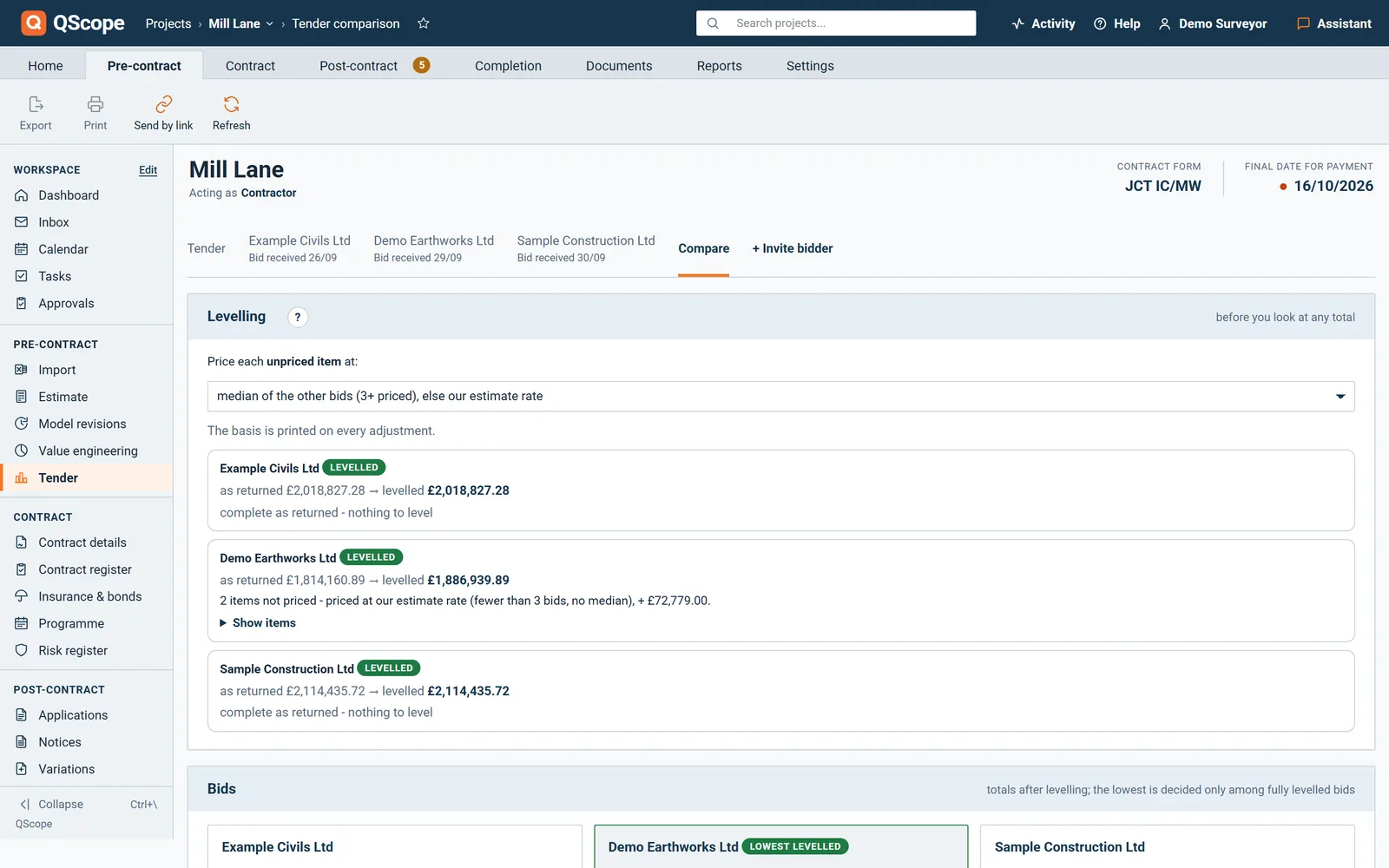
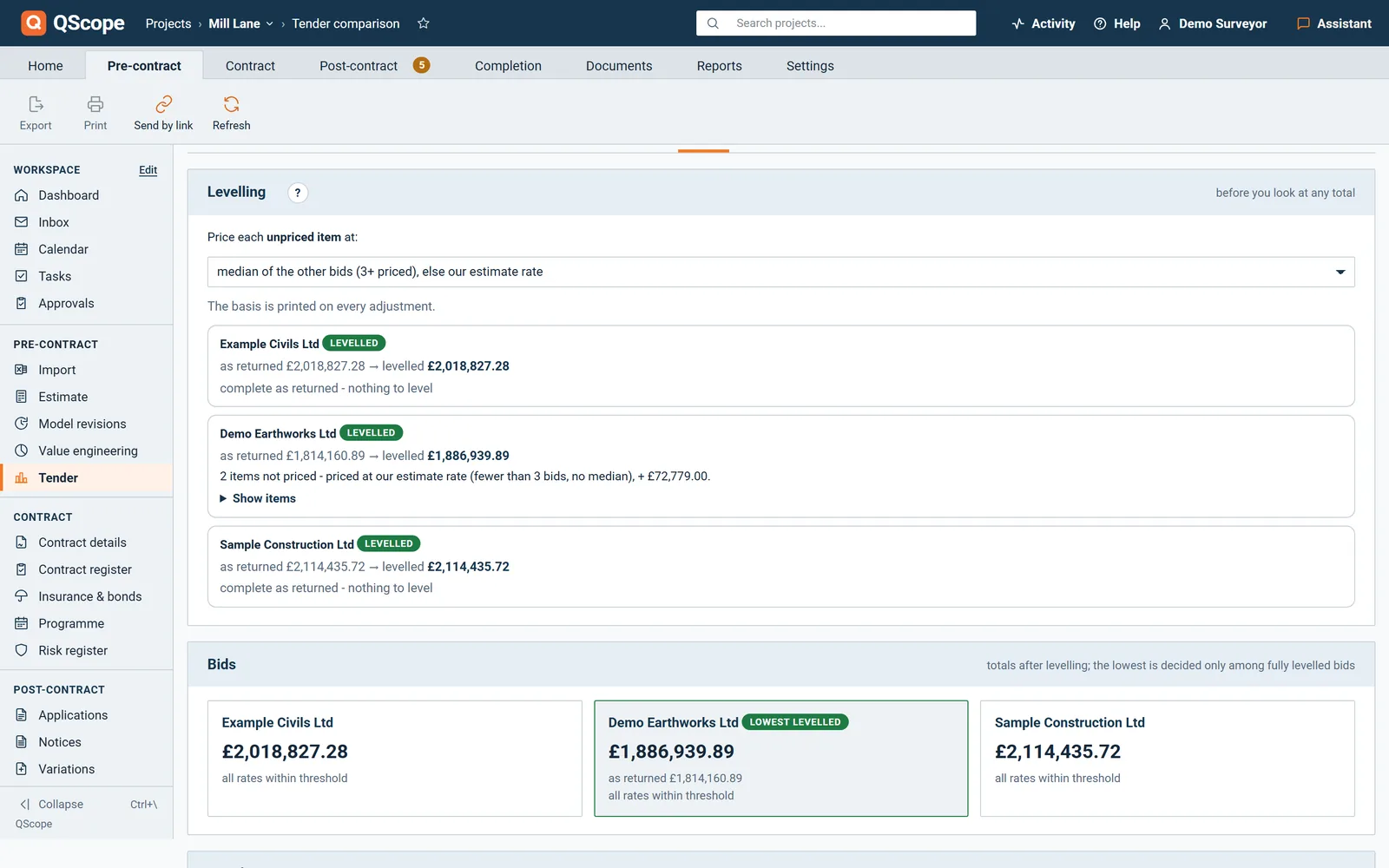
An unpriced item is not free, so every gap is filled on a stated basis before the totals are compared.

  • Fill a gap at the median of the other bids, at the highest of them, or at your own rate
  • A qualification with an amount is added to that bid, and one without an amount holds the bid back
  • Only fully levelled bids compete for the lowest levelled total
Tender comparison
Levelling · Bidder B
As returned£2,146,300
2 unpriced items, at the median+£48,100
Levelled total£2,194,400

Each bid carries a badge: LEVELLED, NOT COMPARABLE YET or LOWEST LEVELLED. Save the comparison to the project and the basis of every adjustment is still there when somebody asks why this bidder won.

Enquiry by link

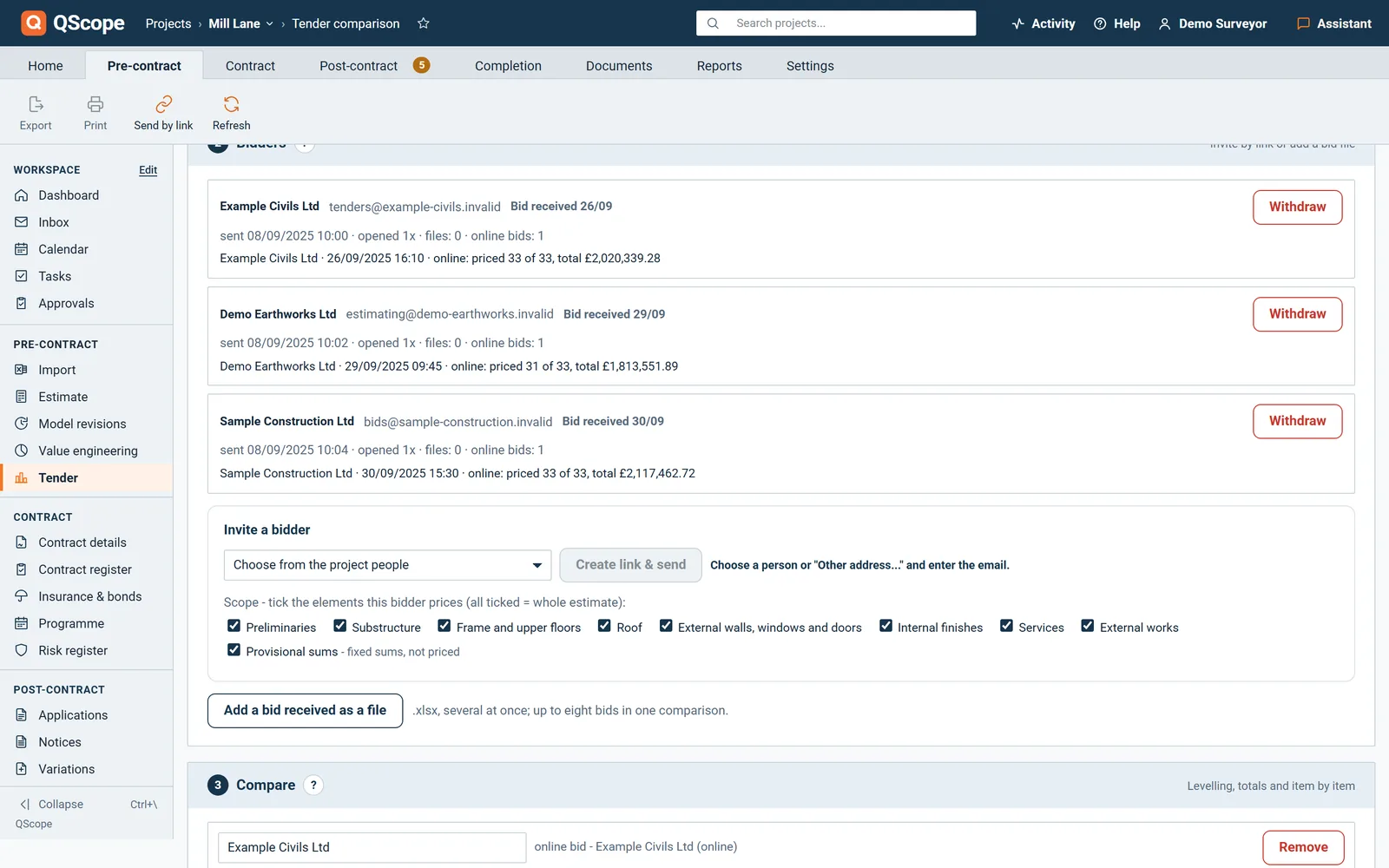
Each bidder prices your scope from their own link

Send the enquiry from the comparison screen, and every bidder gets a personal link that shows the scope without your rates or margins.

  • The bidder prices online with an overheads and profit percentage, or returns an .xlsx file
  • Items the bidder adds need a reason, and questions come back through the same link
  • You are emailed when a bid arrives, with the priced count and the total, and any link can be withdrawn
Tender comparison
Enquiry links · three bidders
BidderStatus
Bidder Apriced 42 of 42 online
Bidder Bfile returned
Bidder Clink sent
Items to price42

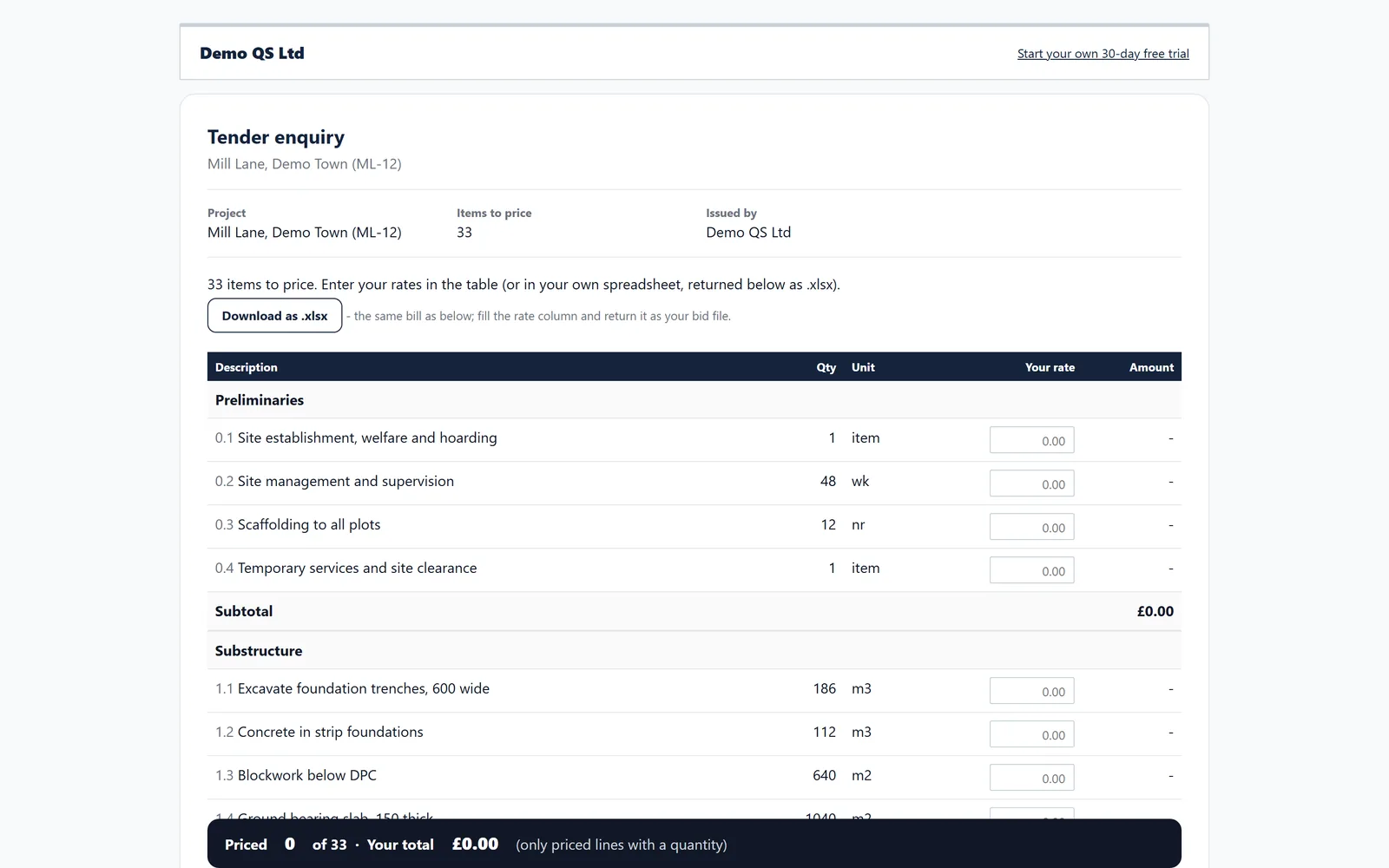
Your rates, provisional sums, contingency and prime cost sums are removed on the server before the bidder's page is drawn, so nothing confidential reaches the link.

Tender comparison

Bidders price inside QScope as guests

A bidder opens the link as a guest, sees only their own estimate to price, and needs no account and pays nothing.

  • The bidder opens the link and sees only the estimate you sent them to price.
  • The rest of QScope is visible but inactive, with a Start your 30-day free trial button.
  • There is no account to create and no charge for the bidder.
Tender comparison
Bidders price inside QScope as guests
In the program
The bidder opens the link and sees only the estimate you sent them to price
The rest of QScope is visible but inactive, with a Start your 30-day free trial button
There is no account to create and no charge for the bidder

Shown on the same screen as the rest of this page.

See it running before you sign up

Every other function on the Tender comparison screen

32 functions the sections above do not cover, each as it works in the program.

Functions 1 to 16

01Each bidder takes its name from the file name, and you can correct it before it goes on the comparison.
02Remove any single bid with its cross, and the rest of the comparison stays as it was.
03Preview the tender document in two views: My estimate with your rates, values and total, and What the bidder sees, which is exactly what leaves QScope.
04Tick the elements of the estimate each bidder prices, so a groundworks contractor sees only the groundworks.
05A returned bid file goes into the comparison with one click on Add to comparison, or you can download it.
06An online bid shows its priced count, total, overheads and profit and added items, and Add to comparison puts it in the table.
07The bidder can download the scope as an .xlsx file with the amount formula, subtotals and a total already in place.
08The bidder gives a name once, and it goes with the online bid, the file and any question.
09Tender comparison has a tab for your Tender, one tab for each contractor you sent it to, and a Compare tab.
10Load the current estimate and QScope tells you how many measured items go out and what stays home: omitted lines, description-only lines, the VO line, contingency and provisional sums, and unmeasured items.
11A file with no priced rows, a file already loaded or a ninth bid is skipped, and the screen names each skipped file and the reason.
12A bid file is read where quantity times rate equals the amount to the penny, and a file without those three columns is named, not half read.
13A gap with no basis, such as a median with fewer than three other rates, is marked with a question mark and holds the bid back from the comparison.
14The overheads and profit percentage from an online bid is added before levelling, so bids are compared on what you would actually pay.
15A bid that cannot be compared yet says why: gaps with no basis, qualifications with no amount, changed sums or repeated items.
16When the total written in a bid file does not match its own lines, the bid card shows the stated total and the difference.

Functions 17 to 32

17If your own document repeats an item reference, QScope lists the repeated references so you know a rate lands on both rows.
18A rate that stands out shows by how much: against the median of the market when three or more bids priced the line, otherwise against your own rate.
19Rows in a bid that are not in your document are counted and listed under the table, and kept out of the totals.
20When two or more bidders add the same item, QScope says so, as a sign that the item may be missing from your estimate.
21Once the comparison is saved to the project, later changes save themselves every few seconds, and closing the tab with unsaved changes asks first.
22Open Tender comparison again and the saved set comes back, ready for the next bid to be added.
23If a colleague saved the comparison after you opened it, your save is refused and nothing is overwritten.
24Bid files are read in your browser and the files themselves are never uploaded.
25A new link to the same email address replaces the old one, so one bidder never holds two live links.
26The list of enquiries shows when each link was sent, how many times it was opened, and how many files and online bids came back.
27The bidder's page groups items by element and works out each subtotal as rates are typed.
28A bar at the foot of the bidder's page shows how many items are priced, the total and the total with overheads and profit.
29When a bid file arrives you are emailed the bidder's name and the file name, with a button to open the comparison.
30Saving the comparison, every bid received and every link created or withdrawn are written to the Audit trail.
31The bidder's pricing is saved as they type, so they can come back from the email and find everything they entered.
32When a bidder returns their price, a badge appears next to Tender comparison in the menu and the bid waits in the comparison.
Who it is for

One chain of payments, four places on it

You are applying

You certify down while applying up

You certify your subcontractors down the chain while your own application runs up it, and the gap between the two cycles is your cash position.

Applying for payment
the same measurement

You are certifying

You certify the top of the chain

You certify the main contractor, and what they owe their chain is not your contract - but their insolvency risk is your project risk.

Certifying payment

You are doing both

You pay the chain from your own account

You pay the packages yourself, on their own retention and their own dates, while chasing your own money on a different cycle entirely.

Doing both yourself

You are reporting

You watch the chain for the lender

You watch the chain below the borrower: money that stops moving down the chain is the earliest warning the facility ever gets.

Recommending a drawdown

The client, the architect and the tenderer are not on this list. They are the people you let in on a link: they see the one document you sent them, answer it, and that answer is written into the record. No account, no licence, no charge, on every plan.

FAQs

The questions this page raises most often, answered without a sales pitch at the end.

Your tender document, or your current estimate with no file, and up to eight returned bids side by side, matched by item reference.

They show as gaps, and each one is levelled on a basis you choose: the median of the other bids, the highest of them, or your own rate. The basis is shown against every adjustment.

The items to price, with description, quantity and unit, and a column for their rate. Not your rates, your margins, provisional sums, contingency or prime cost sums.

Yes. Send out to tender on the estimate builds the enquiry from your lines, and the comparison can use the current estimate without a file.

From the blog

The part nobody teaches you, written down

Three pieces from the same corner of a contract as this page, answered at length and without a sales pitch at the end.

All 174 pieces

Keep reading

The three parts this page leans on

Level the last tender you ran by hand

Put your document and the returned bids in, level the gaps on a basis you can defend, and see whether the cheapest bid was really the cheapest.

30 days free, no card.

Rather ask first? Write to help@qscope.co.uk and you will get a reply within one working day, Monday to Friday.